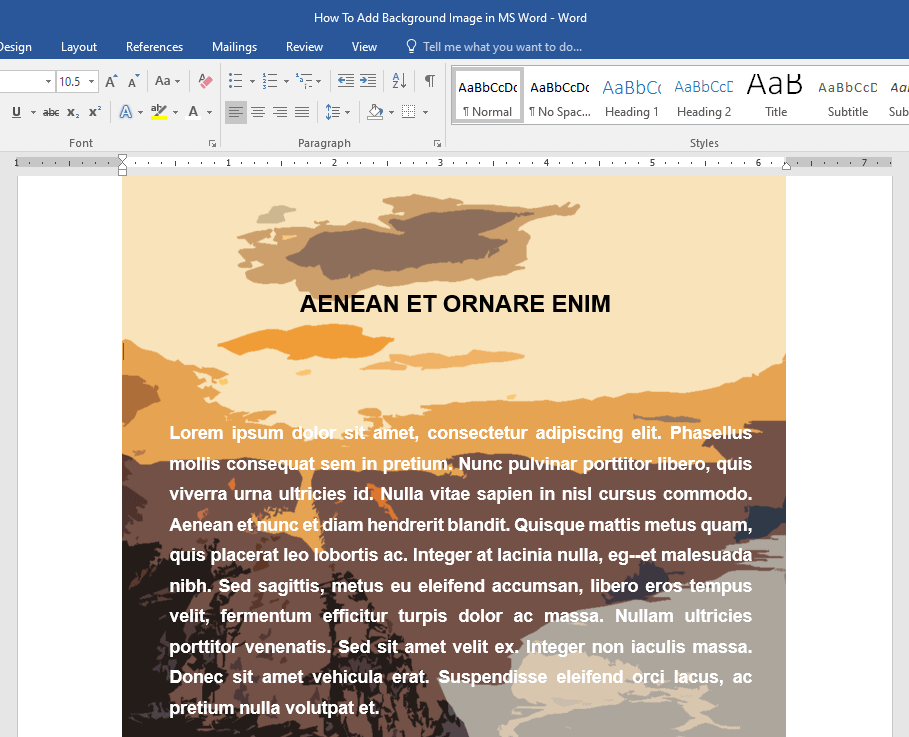
4 Ways to Add a Background Image in MS Word
- Add a background image using the Insert Pictures dialogue box
- Add a background image by copying and pasting
- Add a background image by dragging and dropping
- Add a background image using Custom Watermark
Google Sheets offer a couple of methods you can use to remove duplicates in a sheet.
solve this problem. You can either use the Remove duplicates command or the UNIQUE function.

Let’s get started!
Exponents are widely used in different types of writing. They are typically added to point to a footnote or an …
In this tutorial we will be sharing 2 methods to freeze columns in google sheets 2 Ways to Freeze Columns …
A watermark is a text or picture that is superimposed over a significantly large section of each page of a document.
It is usually laid over in light gray color so that both the content and the watermark are acceptably visible and readable.
This is sometimes called the “ghost text”.
We often see the company logo, the company name, or words like “Confidential” or “Draft” laying around in the background of documents.
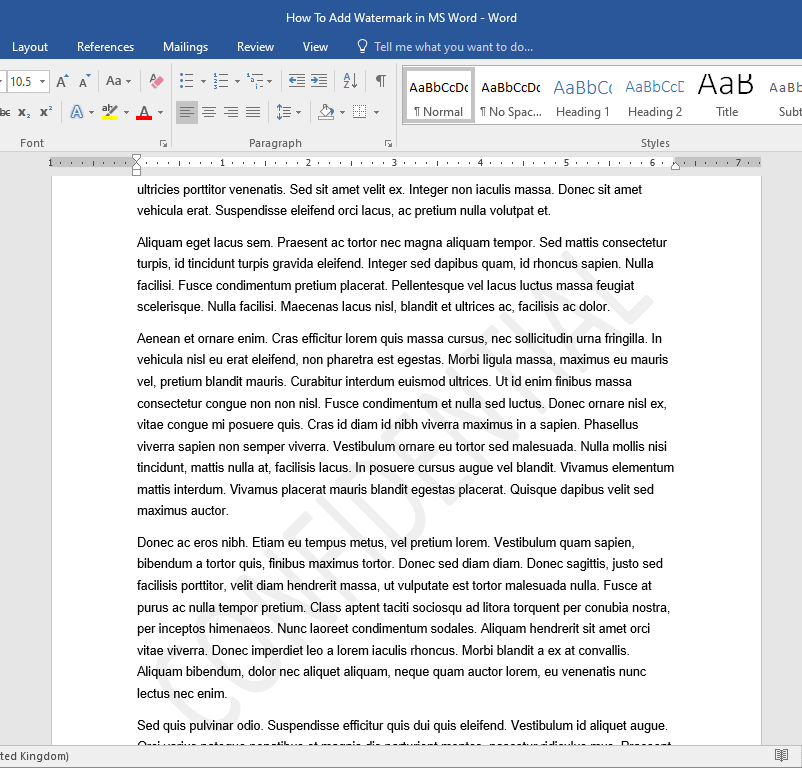
What if you want to remove the watermark?
In this tutorial, I will discuss two methods for removing watermarks from a word doc.
Simply put, a watermark is a text or image that spans over a significantly large portion of each page of a document.
In this tutorial we will share a couple of methods for adding a watermark to a word document
The default language of your MS Word depends on the configuration of your computer or device.
Sometimes, you might want to change it to suit your preferred language. MS Word provides different methods on how you can achieve this, depending on your reasons.
Using pre-installed features, you can either change the display or editing language of your MS Word program.

MS Word uses two language settings—authoring and display.
Authoring Language: It manages the proofreading options, such as the spelling and grammar of your documents.
Display Language: It pertains to the language of the menus and controls of MS Word.
Let’s get started!
Mergagin table cells allow you to join two or more cells into one larger cell.
Here is an example of a table with merged cells.
Word makes it easy to merge cells in a table.

Important note: Merging cells will combine and delete the data of certain cells. By default, the top-left most cell’s information will be retained and used in the new merged area. Keep this in mind as this may delete the information of some cells without you meaning to do so.
In this tutorial we will share technique to add custom fonts in MS Word

Now, there’s only one way that you can do this but it involves certain complicated steps.
Let’s get started!
Sometimes, you might notice that there are clickable links within your documents. These links are commonly known as hyperlinks.
MS Word has an automatic feature that adds hyperlinks to words, especially when you type in or paste URLs.
Yet, there are instances wherein you having these works hyperlinked is unnecessary.
In this article, we’ll guide you through the different methods that you can use to remove hyperlinks.

Let’s get started!