
How to Lock an Image in Word?

6 Ways to Lock an Image in MS Word
- Lock an Image Using Picture Anchor Tool
- Lock an Image Using Picture Content Tool
- Lock an Image Using Restrict Editing Option
- Lock an Image Using Watermark Tool
- Lock an Image Using Fill Effects
- Lock an Image Using Header and Footer
How to Select All in MS Word ?
It is fairly straightforward to quickly select all the text in MS Word documents. We will go over 3 ways to do it.

3 Ways to Select All in MS Word
- Select All using a ShortCut Key
- Select All using Mouse
- Select all using the Select tool
How to Insert Rupee Symbol in MS Word
Currency symbols are generally used as shorthand for currencies, even electronically. This is why keyboard manufacturers have already integrated these symbols so that users can just use them instantly.
However, not all currency symbols are readily available on the keyboard. Even then, there are still many techniques that you can use to insert a specific currency symbol in your document—an example of this is the Rupee symbol (₹).

In this article, we’ll take a look at some methods on how you can insert a Rupee symbol (₹) in MS Word.
3 Ways to Insert Rupee Symbol in MS Word
- Using the Numeric Keypad
- Using the Rupee Symbol Unicode
- Using the Character Map tool
These three are the most common and easiest ways on how you can insert the Rupee symbol in your document. As you read the remainder of this article, you will come to realize that inserting a Rupee symbol is a very straightforward process. Now, let’s have a look in detail at the steps needed to apply these techniques successfully.
Let’s get started!

How to Insert Roman Numerals in MS Word?
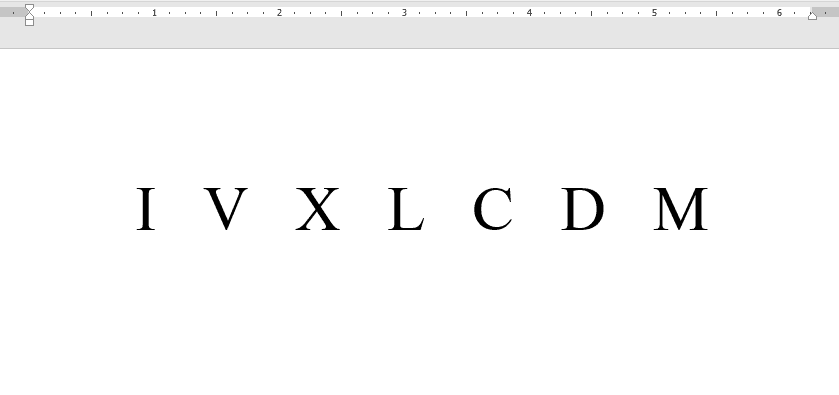
5 Ways to Insert Roman Numerals in MS Word
- Insert Roman numerals by typing English letters
- Insert Roman numerals as a numbering style
- Insert Roman numerals as a page number
- Insert Roman numerals using Unicode
- Insert Roman numerals by MS Word fields
How to Insert the Copyright Symbol in MS Word
4 Ways to Insert the Copyright Symbol in MS Word
- Using the Symbol dialogue box
- Using an ASCII code
- Using a shortcut key
- Using Windows 10 emoji panel

How to Change Bullet Spacing in MS Word?

2 Ways to Change Bullet Spacing in MS Word
- Using the Adjust List Indents command
- Using the Line Spacing feature
We’ll consider two different aspects—list indents and line spacing.
List indents affect the spacing of a bullet symbol to its corresponding line.
In contrast, Line spacing refers to the the spacing between bulleted items.
How to Insert Tick Mark in MS Word?

2 Ways to Insert Tick Mark in MS Word
- Using the Numeric Keypad
- Using the Symbol dialog box
Let’s get started!
How to highlight multiple words in Google Docs
It’s easy to highlight continuous text in Google Docs. All you have to do is drag your cursor across the screen. Google Docs also offers multiple methods for selecting the entire document.
For example, you can press Control (or Command) + A or choose the ‘Select all’ option from the Edit menu. You can read about the methods for selecting the entire text in Google Docs here.
However, there is one type of text selection that is not easy to do in Google Docs. This is the selection of non-continuous text. For example, sometimes you may want to select a word in paragraph 1 and another word in paragraph 5.
In MS Word and some other word processing apps, you can do this by pressing the Control key and clicking on the text. This keyboard shortcut doesn’t work in Google Docs.
So, how exactly do you select multiple non-continuous words in Google Docs? We will be answering this question in this article. The following is one method you can use to perform this task:
- Selecting all matching text
Note that this article is intended for complete beginners. Hence, you can follow along even if you have very little to no experience with Google Docs.
With that introduction, let’s get started.
How to Type Over a Line in MS Word
3 Ways to Type Over a Line in MS Word Using an underlined tab space Using a line tool Using …